

Setting Up Users and Permissions in Propexo
The first step to getting your account set up in Propexo is inviting users and assigning the correct permissions.
Adding Users
-
Navigate to the Settings tab.
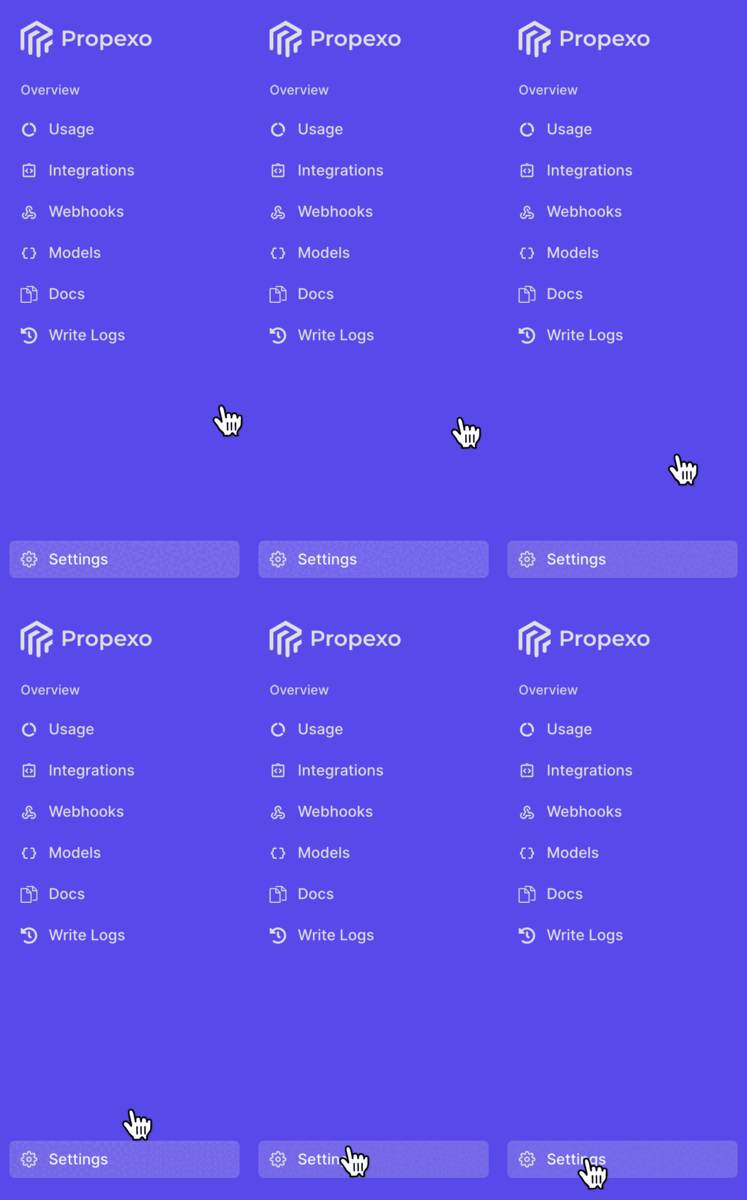
-
Select the Users sub-tab.
-
Click Add User.

-
Enter the new user’s information:
- First Name and Last Name
- Email Address
- Phone Number (optional)
-
Assign a role:
- Admin
- Developer Support
- Read Only
-
Click Create.
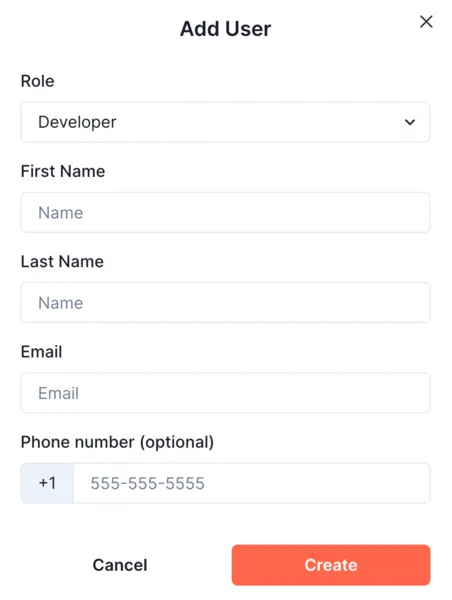
The user will receive an email invitation to join Propexo.
Editing User Permissions
- Locate the user in the list.
- Click the three dots next to their name.
- Select Edit User.
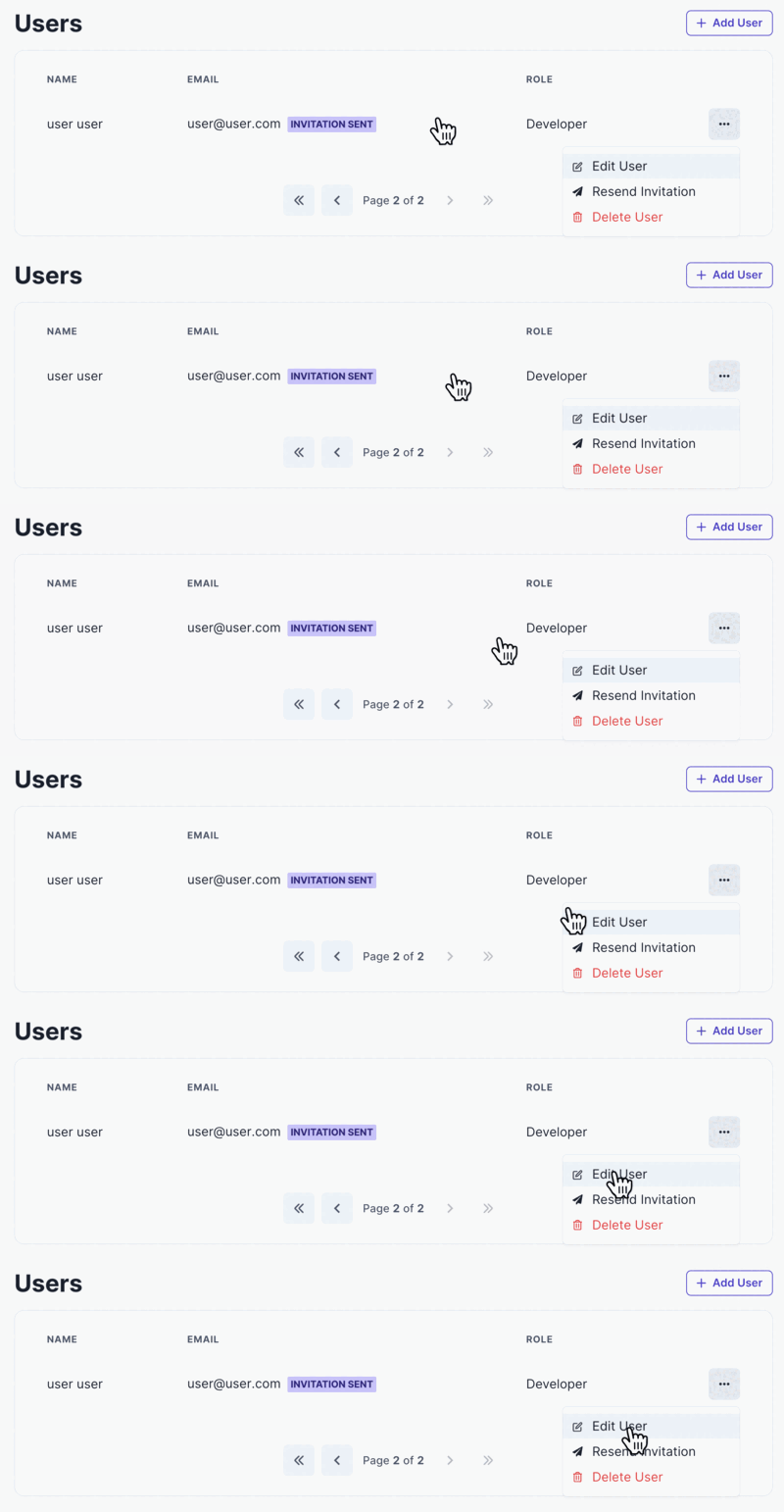
From here, you can:
- Update their role
- Edit name details
- Add or modify the phone number