Yardi: Service Requests Interface Setup Guide
Yardi: Service Requests Interface Setup Guide
The Service Requests interface in Yardi requires vendor configuration, user setup, and property setup. This guide walks you through the full process step by step.
1. Vendor Setup
To configure a vendor for service requests:
-
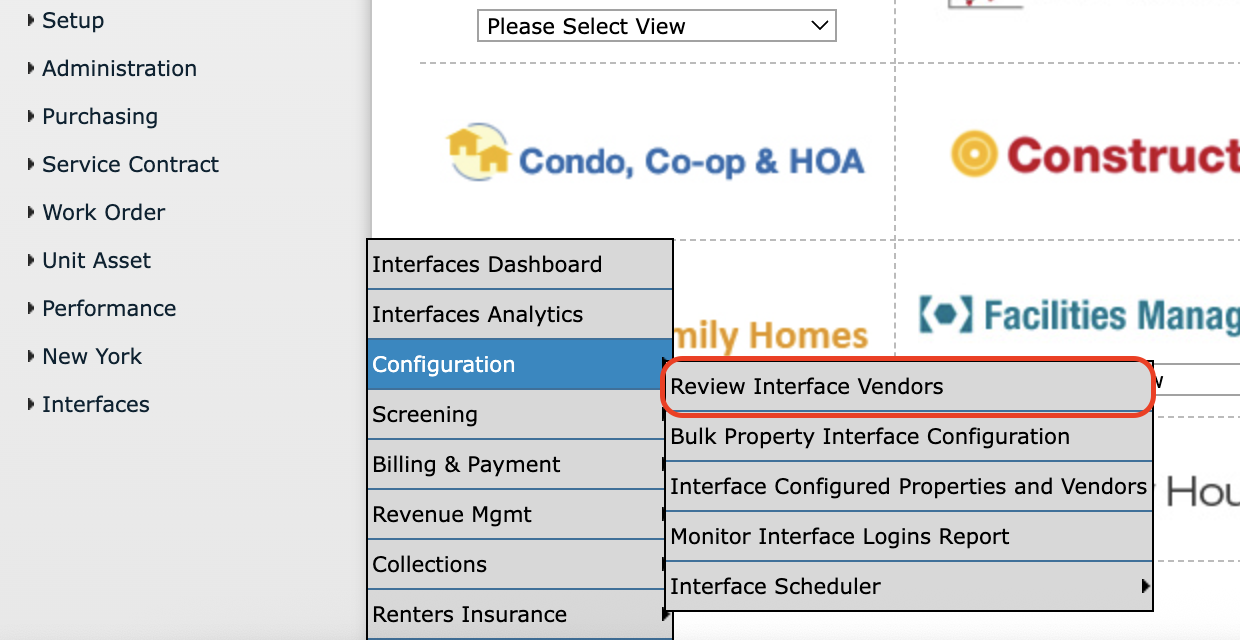
From the side menu, go to Interfaces > Configuration > Review Interface Vendors.
-
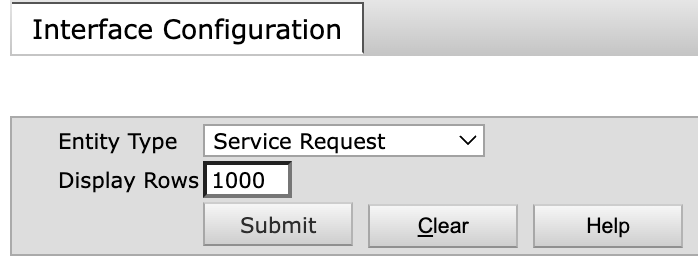
Select Service Requests from the Entity Type drop-down list.
-
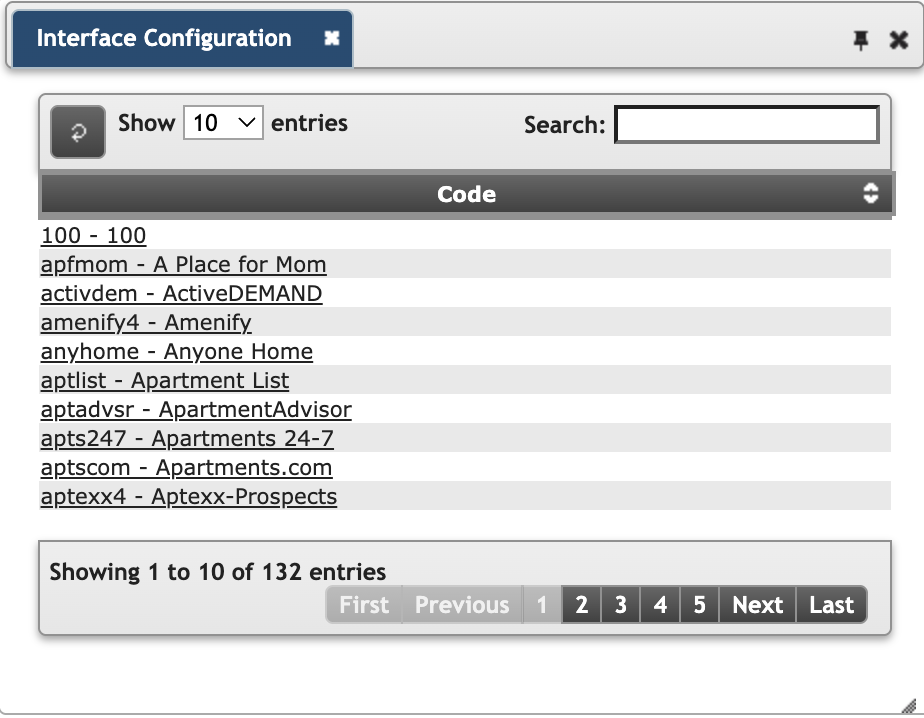
Click Submit. A list of available vendors will appear in the side menu.
-
Select a vendor. The Service Request configuration page for that vendor will open.
Configuration tip:
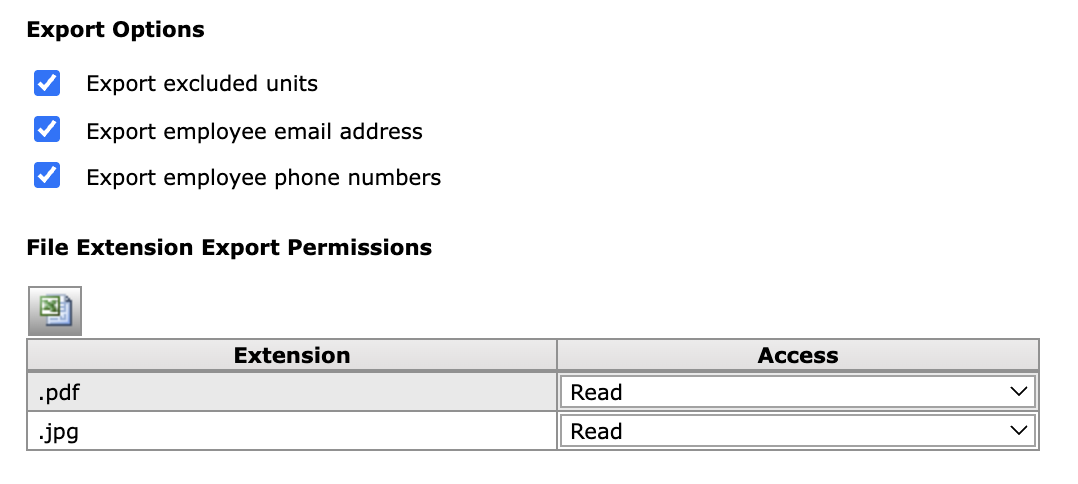
- Use the maximum settings unless there is a specific reason not to. Select the export options, and select accesses from the file extension export permissions dropdowns.
Example screenshot showing carefully selected permissions:
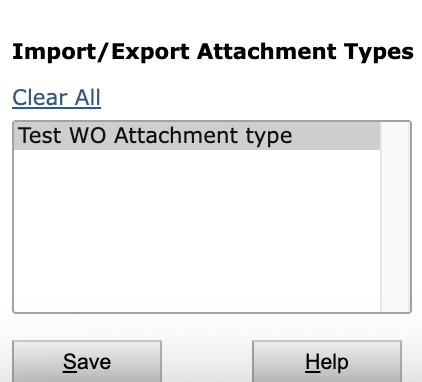
Select the Import/Export Attachment types the vendor is to have access to in the resident record.
- For Import/Export Attachment Types, select ALL and click Save.
These items show in the list whether saved or not, so this step is easy to miss.
If properly saved, the items will appear greyed out (as shown in the example). If not greyed, you will run into issues.
2. User Setup
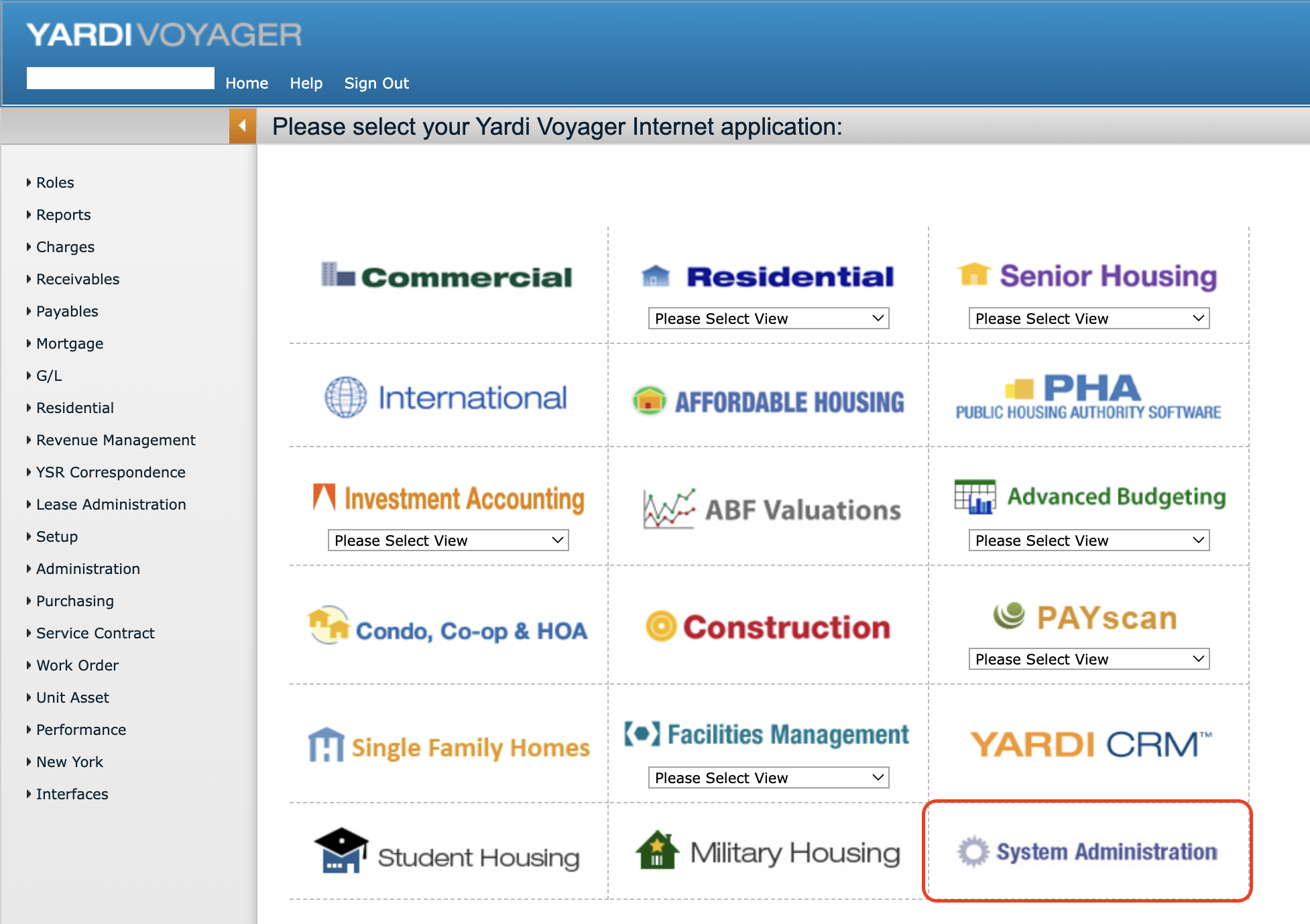
To configure users, navigate to:
Yardi > Home > System Administration tile
This process assumes no user or security group has been set up. You will create a group, then create a user, and assign the user to that group.
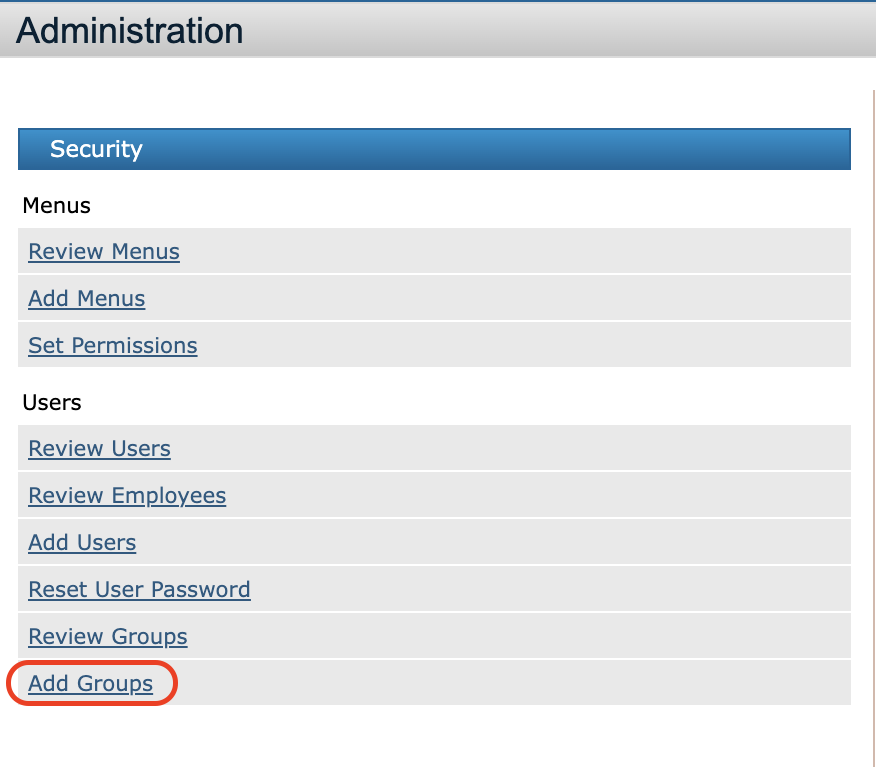
Add Group
-
Click Add Groups.
-
Enter a Code and Description (self-selected).
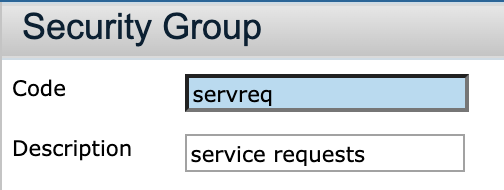
-
Set the Default Menuset Name to Interface.
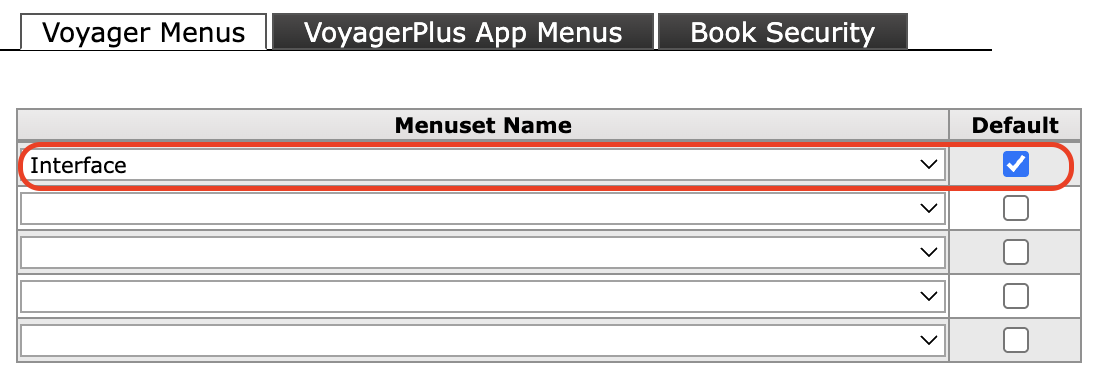
-
Click Save.
Set Permissions
-
From System Administration, select Set Permissions.
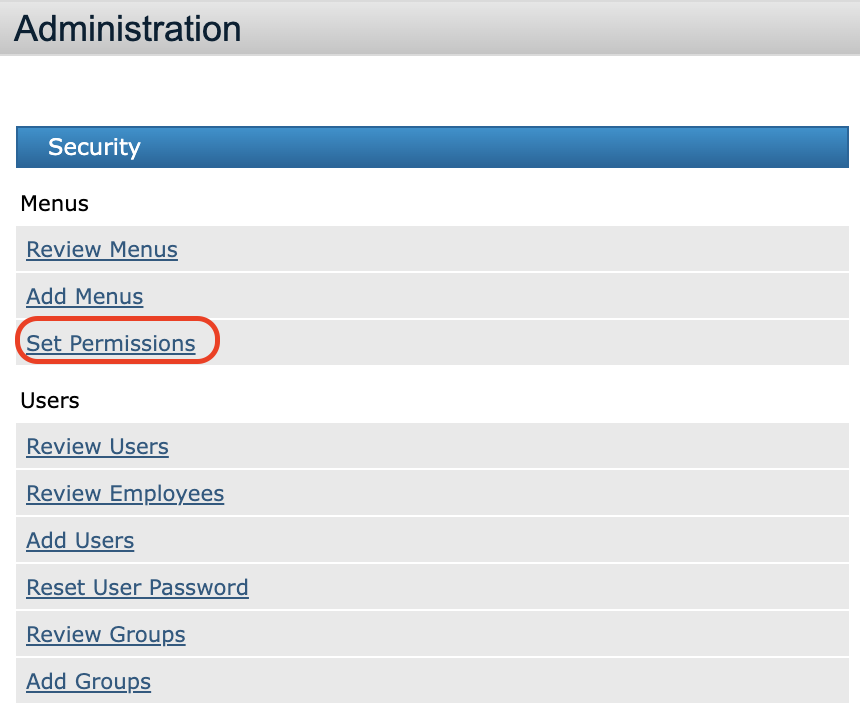
-
Locate the group you created.
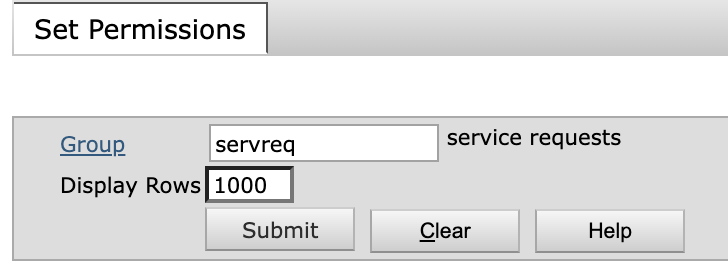
-
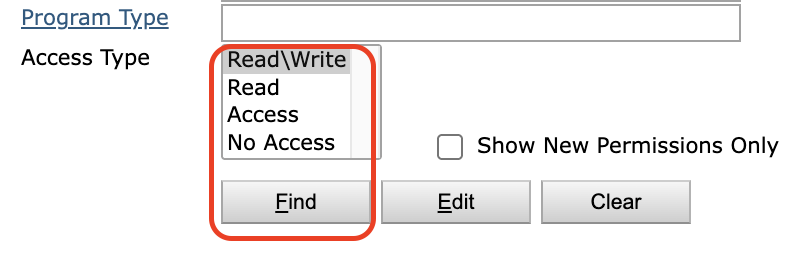
Leave the Program Type field empty, select Read/Write, then click Find.
- If the permissions table is empty, select No Access, then click Find again.
- If the permissions table is empty, select No Access, then click Find again.
-
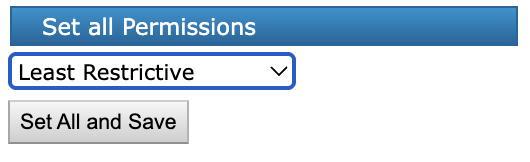
Use Set All Permissions and choose Least Restrictive.
- This must be done from the screen where you can see the interfaces listed.
- This must be done from the screen where you can see the interfaces listed.
Add User
-
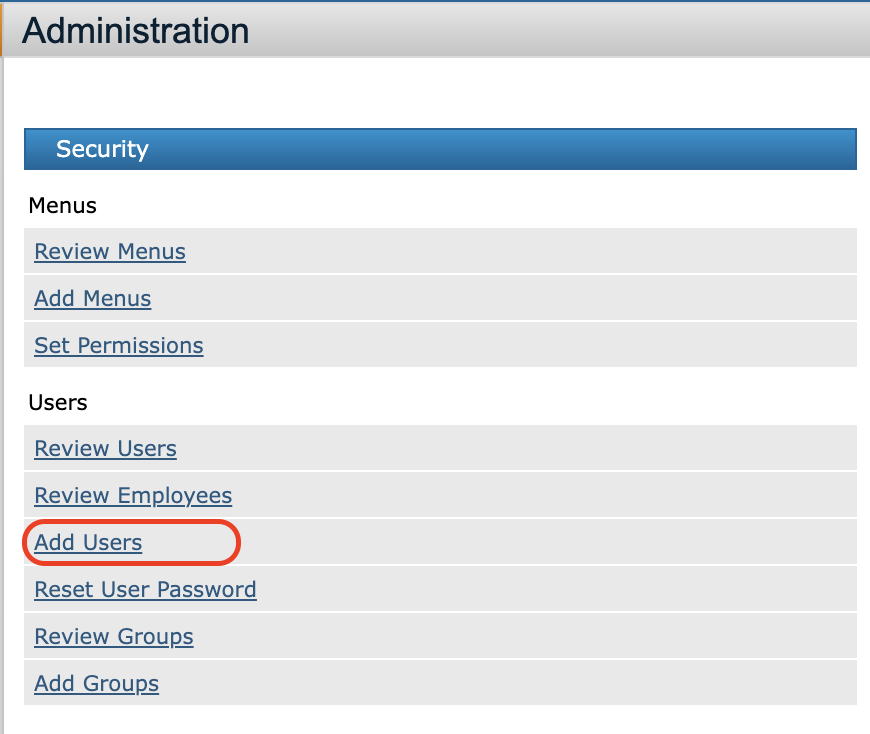
Return to the Administration page:
Yardi > Home > System Administration tile -
Click Add Users.
-
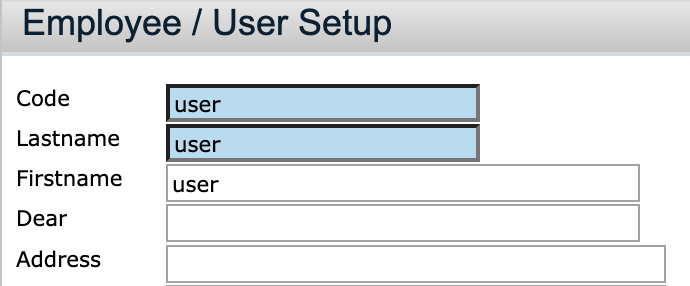
Enter the First Name, Last Name, and a self-selected Code.
-
Assign the Group you just created.
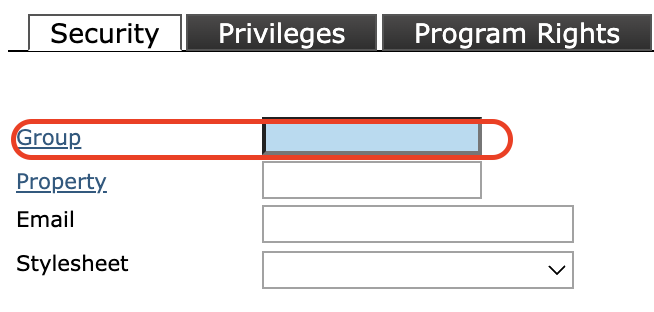
-
Set the Username and Password (chosen by the customer).
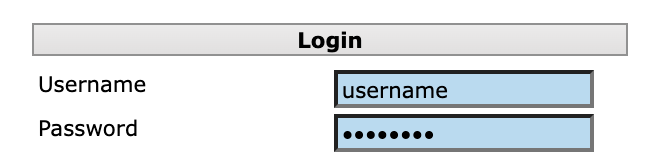
-
Select a property list to tie the user to (Active is recommended).
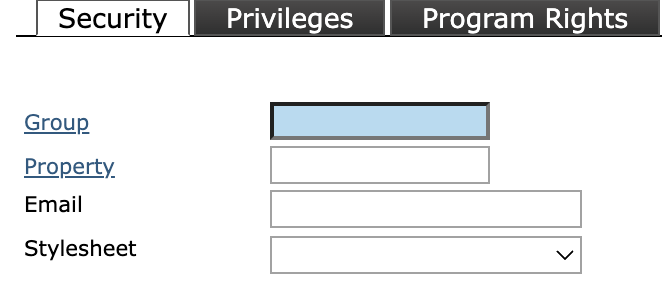
-
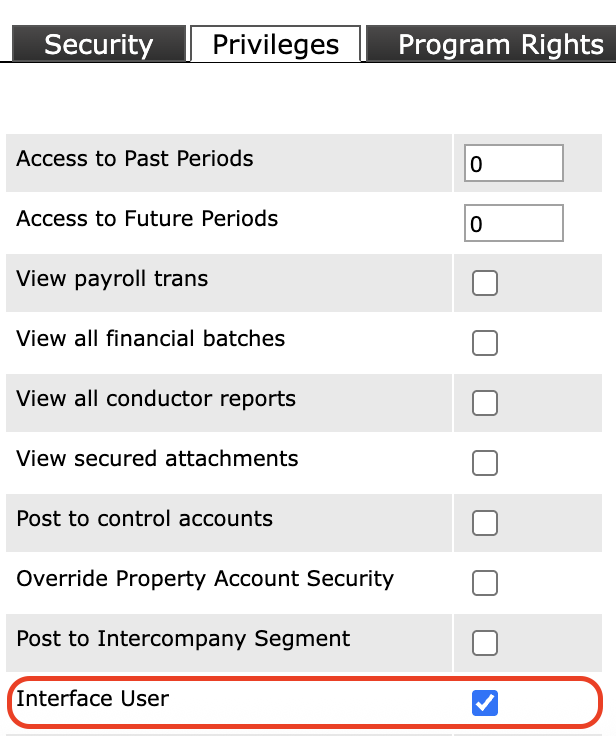
Under Privileges, check the box to mark the user as an Interface User.
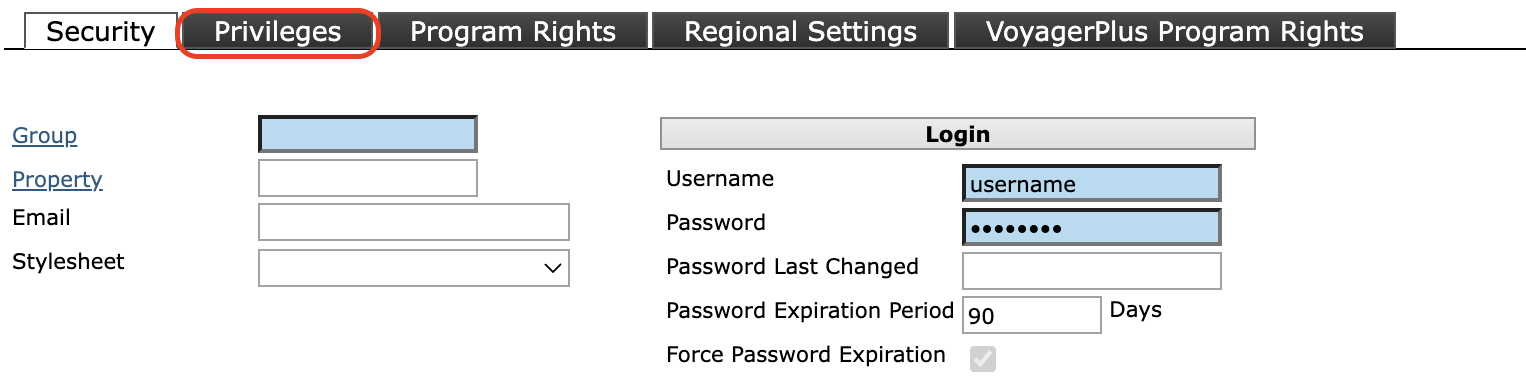
-
Click Save.
Property Setup
Bulk Property Setup
(This method can also be used for a single property.)
-
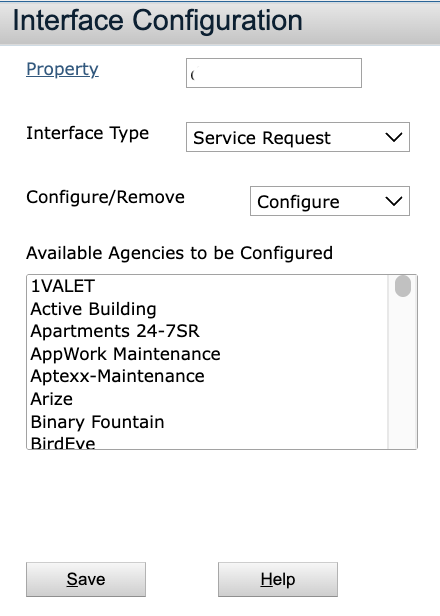
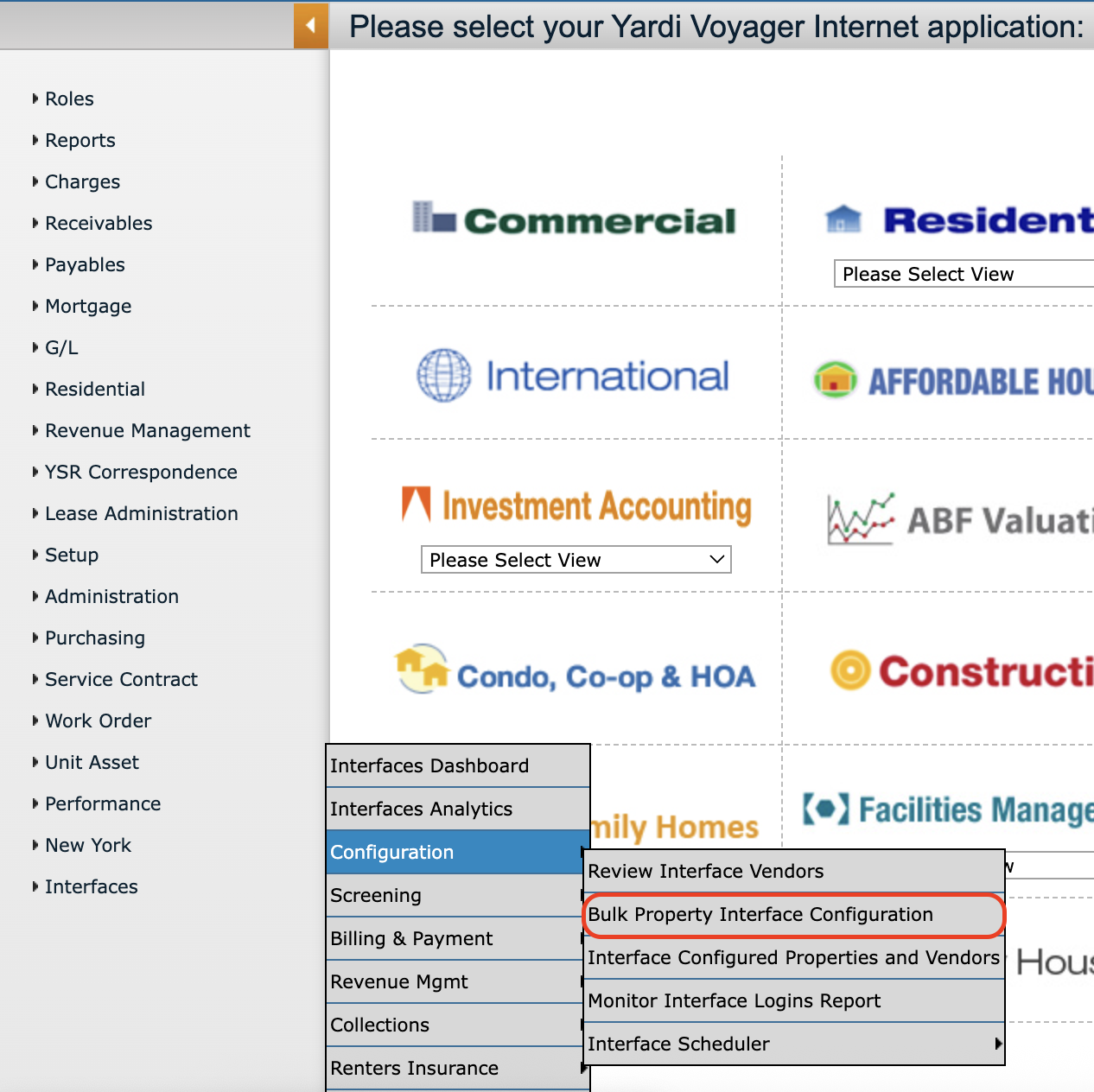
Go to Interfaces > Configuration > Bulk Property Interface Configuration.
-
Search for and select a Property.
-
Choose Service Requests as the Interface Type.
-
Leave Configure selected.
-
Select the correct Agency.
-
Click Save.