2. Setting Up Users and Permissions in Propexo
Setting Up Users and Permissions in Propexo
The first step to getting your account set up in Propexo is inviting users and assigning the correct permissions.
Adding Users
-
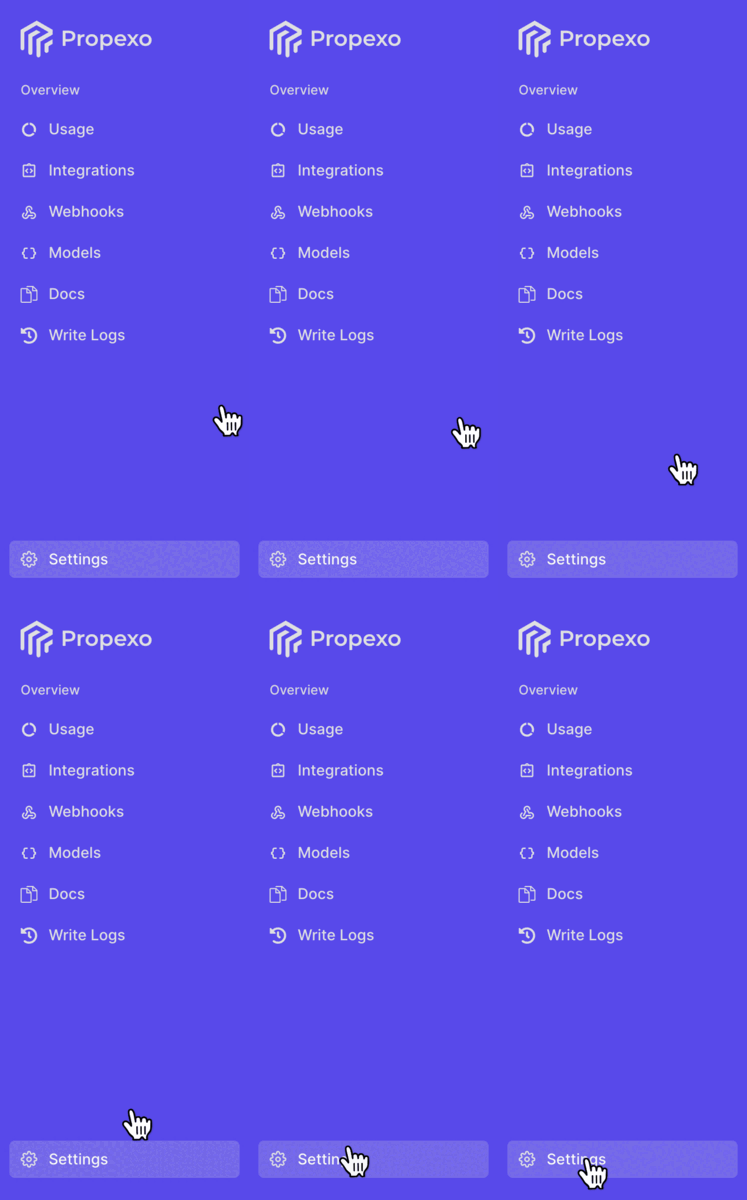
Navigate to the Settings tab.
-
Select the Users sub-tab.
-
Click Add User.

-
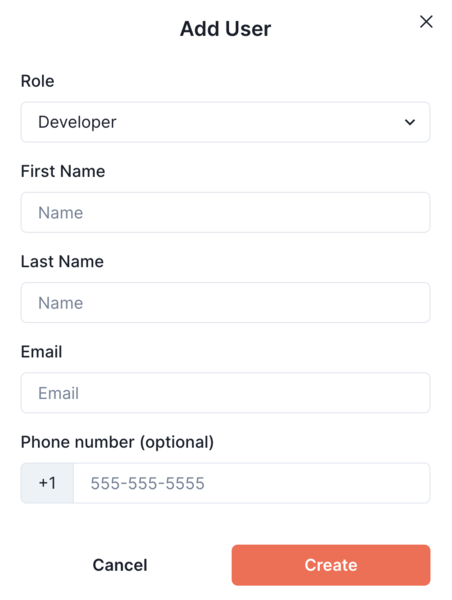
Enter the new user's information:
- First Name and Last Name
- Email Address
- Phone Number (optional)
-
Assign a role:
- Admin
- Developer Support
- Read Only
-
Click Create.
The user will receive an email invitation to join Propexo.
Editing User Permissions
-
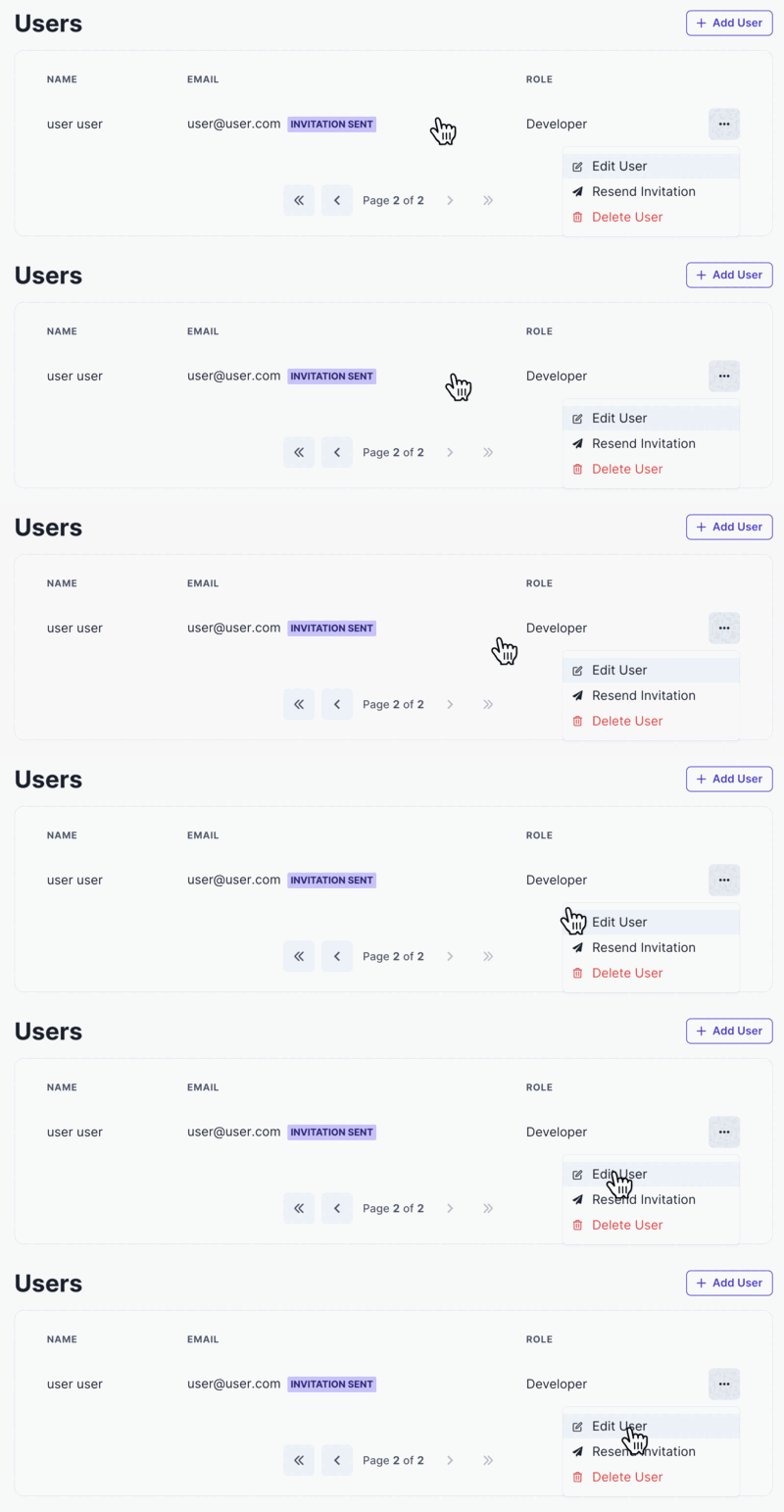
Locate the user in the list.
-
Click the three dots next to their name.
-
Select Edit User.
From here, you can:
- Update their role
- Edit name details
- Add or modify the phone number